
Introduction
An accessible web is meant for everyone. As programmers and designers, we start from the perspective of a blind person, but we often forget that the same quality-of-life improvements also benefit the wide range of people who see the same content slightly differently.
I think that good design is both beautiful and accessible for as many people as possible.
In the post, I focus on my first steps to improve my website’s accessibility. It’s a process, and this one focuses on the things that I can easily confirm with Lighthouse. This is not meant to be the end, but a mere beginning of my journey.
This post does not contain all the changes I have made, and as time goes on, there are likely to be even more things that need to change about this website. We all have to start somewhere, and this post is a testament to my journey.
Hugo Static Site Generator
I use Hugo to render this website and host it in AWS S3. The fact that your browser needs to simply download an HTML file, along with some CSS, JavaScript, and images, means the site seems quite responsive already. That already improves accessibility compared to more dynamic websites, which need to process each request and generate HTML as your browser requests the site on each new page load.
There are many ways to create a website, and choosing Hugo has its drawbacks as well. However, Hugo and the theme developer have already taken steps to make the website more accessible out of the box. This makes my work easier. I just needed to choose the theme and apply a few fixes related to the articles, mostly.
However, each site is different, and there is no one-size-fits-all approach to web accessibility. Therefore, we need a way to determine whether my site is accessible. To get us started, let me introduce you to Lighthouse.
Lighthouse
Lighthouse is a feature in the Chrome browser 1. You can find it in the Developer Tools. This tool helps you get better at building websites by pointing out what to fix. It gives you quantifiable metrics to identify flaws. The checks included are performance, accessibility, Search Engine Optimization (SEO), and Progressive Web Apps (PWA) best practices. In this blog post, we focus on accessibility, but all of these, except the PWA, are important for an accessible website.
Lighthouse offers a good start for checking if your site is accessible or not. The checks it has include:
- The document has a title element
- The meta tags are appropriate
- Images have alt tags
- Links have descriptive text
- The page loads fast
- There are no large layout shifts
- Buttons have accessible names
- etc.
The checks give you a score in each of the categories and point out which of the checks failed so that you can go and fix them. The Lighthouse evaluation is run on a page-by-page basis. This is where Unlighthouse comes in.
Unlighthouse
Unlighthouse is a tool that lets you run Lighthouse on a website, follow its links, and audit all the pages2. It then gives you an overall score for the entire site. For someone like me who aims to make their website accessible, Unlighthouse offers an easy way to start.
Often, people check only the front page, but that’s rarely where visitors find the information they’re seeking. That was my experience as well: although my front page scored highly, most of the accessibility issues were in the blog posts. I hadn’t considered accessibility while writing those posts or choosing the site’s color scheme.
Analysis
When I ran the Unlighthouse on the website for the first time, I got a score of 94. The scores were
- Performance: 100
- Accessibility: 93
- Best Practices: 100
- SEO: 85
I got the following SEO and accessibility issues to fix:
- The document lacks a meta description.
- Reason: Blog post pages missed some meta tags.
- robots.txt is not valid.
- Reason: I was missing a robots.txt for the site.
- Serve static assets with an efficient cache policy.
- Reason: I had not added a Cache-Control header to the CloudFront settings.
- Background and foreground colors do not have a sufficient contrast ratio.
- Reason: Some of the links did not have a proper contrast to the surrounding text.
- Image elements do not have explicit width and height.
- Reason: Some of the images did not specify the size.
- Image elements do not have [alt] attributes.
- Reason: Some blog post and profile photo did not have the attribute.
- [role] values are not valid.
- Reason: Some of the lists did not properly specify the role for each entry.
Fixing the issues
Fixing issues related to SEO: Meta tags, Robots.txt, and the cache policy
By default, my initial Hugo site was not configured with a robots.txt file, any meta tags, or a cache policy for static files. While the robots.txt-file does not directly improve the website’s accessibility, it helps make my site more easily discoverable, and it is good practice to include it.
In a similar way, the Cache-Control header is not crucial to an accessible site, but it speeds up load times by preventing the browser from repeatedly fetching large images for returning users, making the site more responsive and thus more accessible.
Meta tags are important for content discoverability and also serve as a quick summary of the content for people using screen readers, helping them quickly understand whether they are on the right page. My site was missing description meta tags on some pages.
Robots
To add a simple robots.txt I added the following configuration to the config.toml: enableRobotsTXT: true 3.
Cache Policy
To add the proper Cache-Control headers for the right files, I configured a few new deployment matches for the Hugo site config.toml. The first matcher adds the header and specifies that the JavaScript and CSS files can be compressed to reduce bandwidth, and the second does the same for image files without compressing them.
[[deployment.matchers]]
pattern = "^.+\\.(css|js)$"
cacheControl = "public, immutable, max-age=31536000" # 1 year
gzip = true

[[deployment.matchers]]
pattern = "^.+\\.(png|jpg|gif|svg|ttf)$"
cacheControl = "public, immutable, max-age=31536000" # 1 year
gzip = false
Description Meta Tags
It was easy not to forget the description on the blog posts themselves. However, there should also be a description on non-content pages, such as the All tags page.
---
title: 'All tags'
date: 2023-06-04
description: 'List of all the tags that there are posts about.'
---
Then I also added a backup if-else statement to include, at the very least, a description built from the name of my blog if all other fields are empty. The following is a line from the base.html in the head tag.
<!DOCTYPE html>
<head>
    ...
    <meta name="description" content="{{ if .Params.description }}{{ .Params.description }}{{ else if .Title }}{{ .Type }} {{ .Title }}{{ else }}{{ .Site.Title }} Blog{{ end }}"/>
    ...
</head>
Fixing issues related to the images
Image elements do not have explicit width and height
Imagine the last time you were annoyed when a button jumped in the split second that you wanted to click on it, and the click actually registered as a click on the page. You probably clicked the wrong button, or nothing happened at all.
Even though the browser can and will display the image without width and height, it does not know the size until it has downloaded it. Thus, the browser cannot know how much space to reserve in the DOM for the image while it is loading in the background, and it has already rendered some of the page for the user. It has to shift the layout to accommodate the image.
This is a very common reason for the layout shift that happens when loading a page!
To add the height and width in the Hugo engine, I needed to add them to the render code in the Winston theme: themes/hugo-winston-theme/layouts/_default/_markup/render-image.html.
+ {{ $img := imageConfig (add "/static" (.Destination | safeURL)) }}
  <figure>
     <img src="{{ .Destination | safeURL }}"
     alt="{{ .Text }}"
+    width="{{ $img.Width }}"
+    height="{{ $img.Height }}"
    {{ with .Title}} title="{{ . }}"{{ end }}>
    <figcaption>{{ .Title }}</figcaption>
 </figure>
In the code snippet, I need to include the imageConfig to get the image height that has been included in the page at render time. Therefore, I do not need to put the image sizes manually, but they will be dynamically rendered correctly when I upload a new version of the site.
Image elements do not have [alt] attributes
Alt-properties are important for users of screen readers. The alt text for an image should describe what is in the picture to avoid someone who cannot see the image missing any content that is necessary to understand the message.
I needed to edit the HTML for the profile picture code in themes/hugo-winston-theme/layouts/partials/author.html.
 <div class="author">
-  <img width="30" height="30" class="author-image" src="{{ .Site.Data.author.image | relURL }}" />
+  <img width="30" height="30" alt="Author's profile picture" class="author-image" src="{{ .Site.Data.author.image | relURL }}" />
  <span class="author-name">{{ .Site.Data.author.name }}</span>
  <span class="author-divider"></span>
  <span class="author-date">{{ dateFormat "January 2, 2006" .Date }}</span>
 </div>
Fixing issues related to colors
The color contrast was something I had not even considered when choosing the colors for my site. I am not a designer, and my understanding of colors was limited. Lighthouse indicated that the contrast was off for some of the links and text compared to the background. This makes the text difficult to see for visually impaired users. I adjusted the website’s color scheme and confirmed that the contrast ratio is at least 4.5:1 (WCAG 2.1)4. For the checking, I used the Contrast Checker 5. I had to change a few code-related colors to allow the contrast to be good enough.
Other miscellaneous issues
Role values
This issue only affected the References section on the post page where I list my sources. The role-attribute should indicate that these are endnotes with the specific value of ‘doc-endnotes’ according to the WCAG 2.1 (A)6. However, Hugo was rendering the value as ‘doc-endnote’. This was strange, and I could not find a way to force the chance. But it was easier than I thought.
I just needed to update my Hugo version, which was a couple of years old. Something had changed, but now it was working.
<h2 id="references">References</h2>
    <div class="footnotes" role="doc-endnotes"> == $0
    <hr>
    <ol>
        <li id="fn:1">
        ::marker
Results
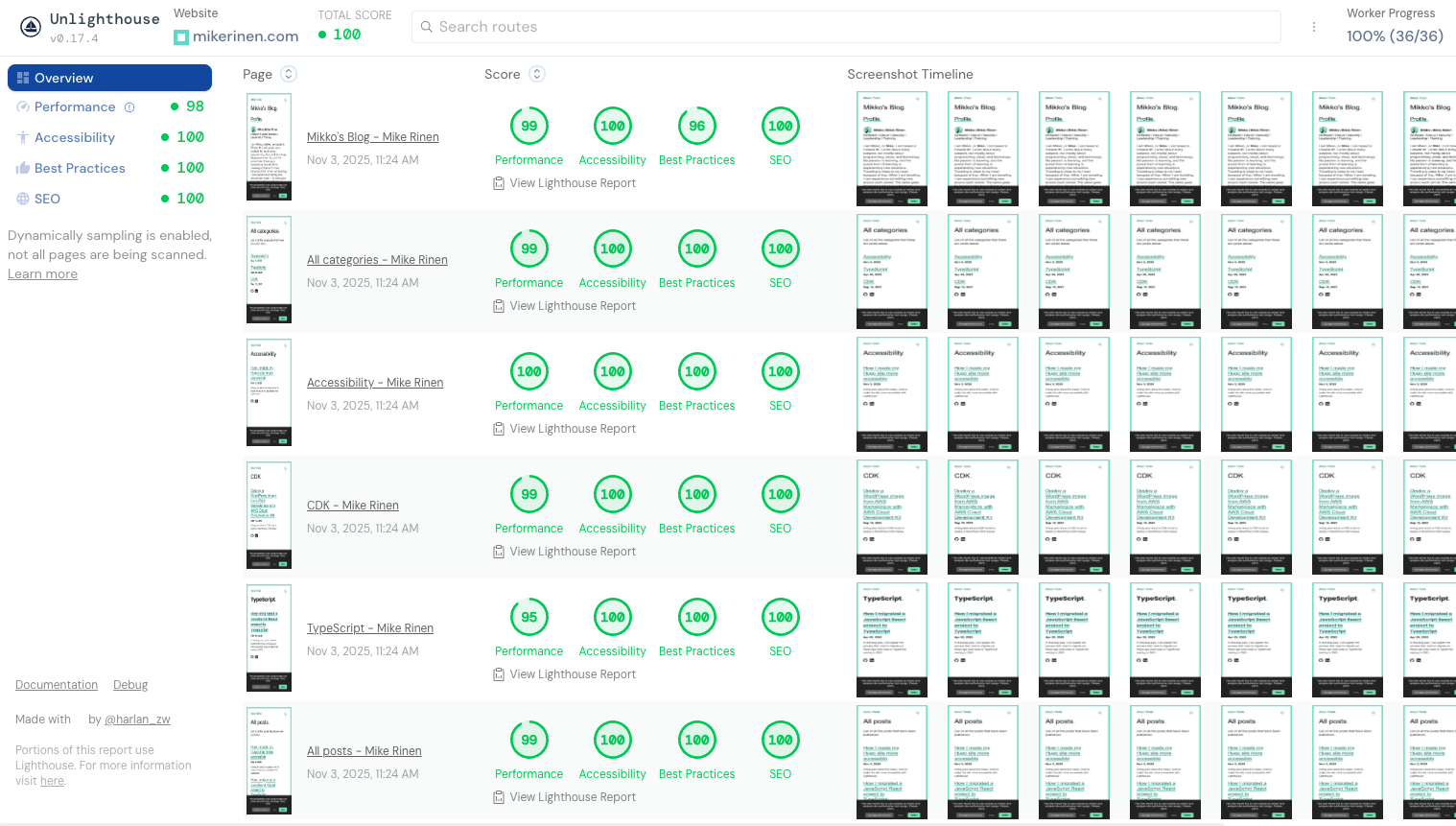
After all the changes, the Unlighthouse final score reached nearly 100 across all categories.
Most importantly, the accessibility metric was 100.
Conclusion
I have always considered accessibility important, but I am ashamed to admit that this has never been a top priority. As I age and see how inaccessible the internet and applications are, I want to understand what it really takes to make my humble blog more accessible. The easiest way to start was to use the Lighthouse, but I will not stop here. I have not used other tools to confirm the usability of my blog, and that should be the next step. There are still so many things that the Lighthouse plugin cannot even check.

